
Viewing Detections
Detections Overview
Section titled “Detections Overview”The Detections page is your central hub for monitoring all threat events captured by WebDecoy. Every decoy trigger, detection script alert, and endpoint interaction is recorded here.
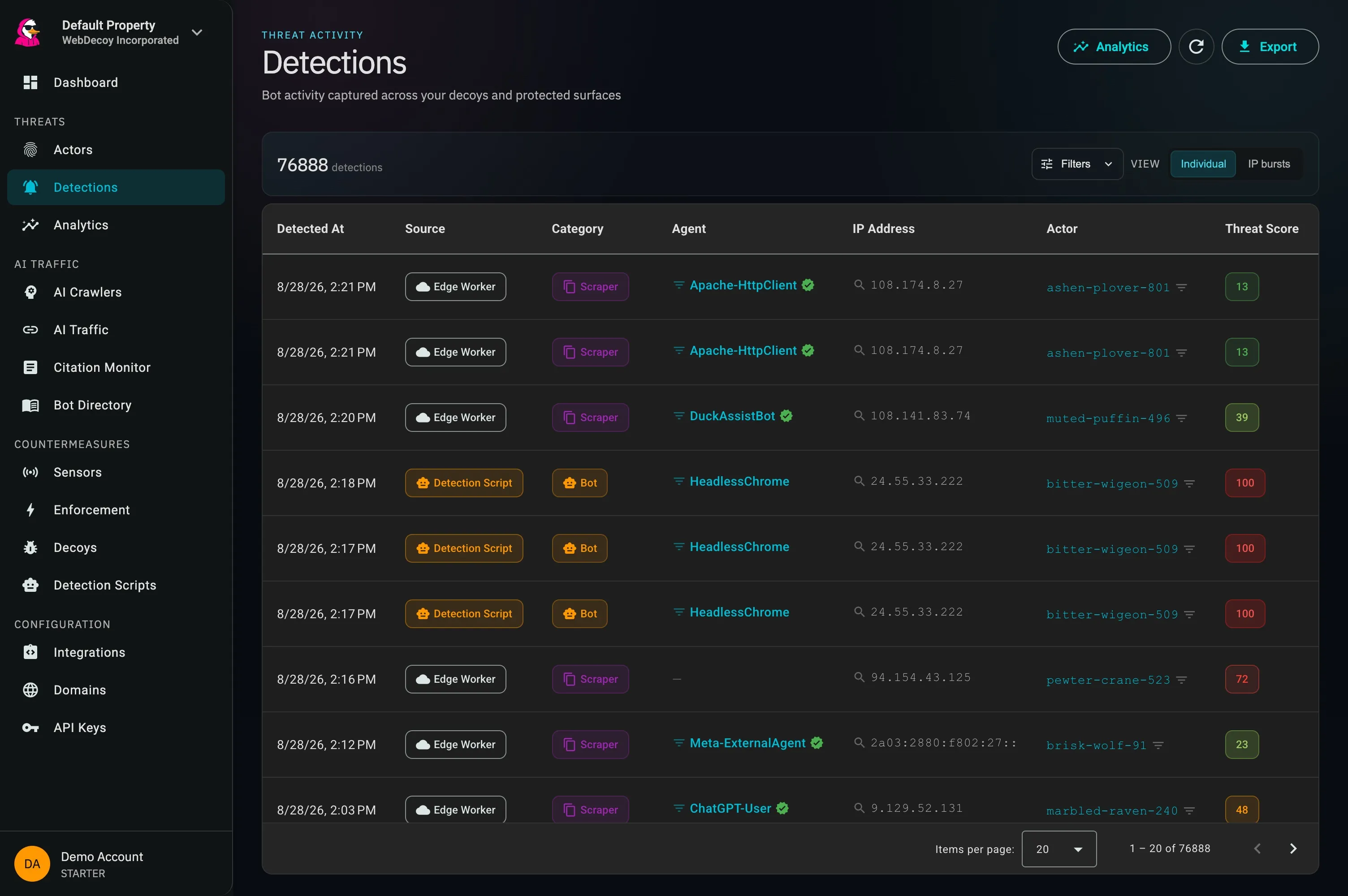
The current Detections screen. Source and identity filters stay close to the evidence they narrow.
Accessing Detections
Section titled “Accessing Detections”- Click Detections in the sidebar
- View the detections table
- Use filters and search to find specific events
Detections Table Columns
Section titled “Detections Table Columns”| Column | Description |
|---|---|
| Detected At | When the detection occurred |
| Source | What captured it (Decoy Link, Endpoint, Detection Script, SDK, Edge Worker, and so on) |
| Category | The threat classification: attacker, bot, scanner, crawler, scraper or legitimate |
| Agent | The client’s declared identity, where it has one |
| IP Address | Visitor’s IP |
| Actor | The adversary this detection correlated to, by handle |
| Threat Score | The unified 0-100 score |
| Response | What was done about it (logged, blocked, rate limited) |
| Actions | Per-row menu: view details, download JSON, download CSV |
The Agent, IP Address and Actor cells each carry a filter control that narrows the list to that value, and the Actor handle itself links straight to that actor’s page.
Detection Sources
Section titled “Detection Sources”| Source | Description |
|---|---|
| Decoy Link | Hidden honeypot link accessed |
| Endpoint | API honeypot triggered |
| Detection Script | Browser-side script detection |
| Tripwire | SDK tripwire path hit |
| SDK | Server-side SDK detection |
| WordPress | WordPress plugin detection |
| Edge Worker | Cloudflare edge sensor |
| Agent | Honeypot agent (SSH, RDP, SMB) |
| Unknown | A source the dashboard has not been taught yet, shown as itself rather than folded into something real |
Opening a detection
Section titled “Opening a detection”Click any row to open its detail flyout. Rows also respond to Enter and Space for keyboard navigation. The cell-level filter controls (Agent, IP, Actor and the row menu) do not open the row, so clicking an IP still filters by it.
Stepping through a burst
Section titled “Stepping through a burst”Triage is usually sequential: you find a burst of a dozen hits from one address and read them in order. The flyout carries previous and next controls in its header, along with your position in the list (“6 of 20”).
Two things about that sequence are worth knowing:
- It is the filtered, sorted set currently on screen, not an unfiltered query. Next-from-row-4 is row 5 of what you are looking at, and it follows your filters, your sort and your burst grouping.
- It stops at the ends of the loaded page rather than paging further, so the flyout never moves the ground underneath the list. The header states the boundary rather than merely hitting it, and the controls are hidden entirely when there is no sequence, which is the case for a flyout opened from a direct link.
Filtering Detections
Section titled “Filtering Detections”Use filters to narrow down detections to specific criteria.
Available Filters
Section titled “Available Filters”The filter sidebar holds one expansion panel per filter. Each panel that has something selected shows a count on its header, so an applied filter is never invisible.
| Panel | What it does |
|---|---|
| Source | One or more detection sources. The list is built from the sources this property has actually seen, so it reflects your install rather than a fixed menu |
| Action Taken | Logged, Blocked in Cloudflare, Rate Limited |
| HTTP Method | GET, POST, PUT, DELETE, PATCH, for endpoint detections |
| Threat Category | Attacker, Bot, Scanner, Crawler, Scraper, Legitimate |
| Threat Score | Minimum and maximum on the unified 0-100 score |
| Country | Multi-select, based on GeoIP, with a count beside each country |
| Risk Indicators | Proxy, VPN, Tor |
| Date Range | Presets for the last 24 hours, 7 days and 30 days, or explicit start and end dates |
| Sort | Sort field and direction (see below) |
Selections take effect as you make them, and an Apply Filters button at the foot of the sidebar re-runs the query on demand.
On a phone the sidebar stacks above the table, so it collapses behind a Filters control there, with a count of everything currently applied.
Filter chips
Section titled “Filter chips”Filtering by Agent, IP address or Actor from a table cell adds a removable chip above the table. Those three live in the URL, so the view is shareable and survives a reload, and dismissing the chip clears the parameter rather than leaving it to reappear on the next load. The Actor chip is accompanied by a link straight to that actor’s page.
Saving Filter Presets
Section titled “Saving Filter Presets”Filter settings are not saved between sessions. Clear your filters before navigating away if you want a fresh view.
Burst grouping
Section titled “Burst grouping”Group by IP burst collapses consecutive hits from one address into a single expandable row, over a 1, 5 or 15 minute window. The toolbar reports how many groups the current page collapsed into and how many detections they hold in total.
A group header carries the address, the hit count, the time span, the highest unified score in the group, and the sources involved. Expanding it lists the individual detections, and clicking any of them opens the flyout exactly as the flat table does.
Finding a specific detection
Section titled “Finding a specific detection”There is no free-text search box. Narrowing happens through the filter sidebar, through the per-cell filter controls in the table, and through URL parameters.
URL parameters
Section titled “URL parameters”The list reads these on load, which is how every drill-down elsewhere in the product lands on the right rows rather than on a filter you have to rebuild:
| Parameter | Effect |
|---|---|
ip |
Every detection from one address |
actor_id |
Every detection attributed to one actor |
ai_scraper_name |
Every detection from one named agent |
agent_impersonation=true |
Only failed identity claims |
agent_verification_method |
Claims proved a particular way |
threat_level |
MINIMAL, LOW, MEDIUM, HIGH or CRITICAL, translated into a score range |
threat_category |
One of attacker, bot, scanner, crawler, scraper, legitimate |
source |
One detection source |
country |
One country code |
ip and actor_id render as removable chips, so what the URL did to your view is visible on screen rather than only in the address bar.
Sorting
Section titled “Sorting”Sorting Options
Section titled “Sorting Options”| Sort By | Description |
|---|---|
| Detection Time | When it happened (default) |
| Threat Score | The unified score |
| Bot Score (Legacy) | The older bot score, on rows that predate unified scoring |
Sort Order
Section titled “Sort Order”- Descending (default): Highest/newest first
- Ascending: Lowest/oldest first
Pagination
Section titled “Pagination”- Default: 20 detections per page
- Use page navigation at bottom
- Total count shown above table
Understanding Detection Details
Section titled “Understanding Detection Details”The flyout reads top to bottom in the order a decision gets made: what happened, what you can do about it, who did it, and why we scored it the way we did.
┌─────────────────────────────────┐│ Detection Details ◀ ▶ ✕ │├─────────────────────────────────┤│ What happened (the verdict) ││ What you can do about it ││ Analysis and other indicators ││ The adversary behind it ││ Threat Score Breakdown ││ Request Details ││ Network ││ TLS Fingerprint ││ Rule Enforcement ││ ▸ Raw data │└─────────────────────────────────┘What happened
Section titled “What happened”The flyout opens on a verdict: one claim in plain language, the evidence for it underneath, and the disposition, time and origin on the line below.
The score is deliberately not first. A threat score of 87 is the least self-explanatory thing in the product and means nothing at all to somebody running a WordPress site. Meanwhile the claim that needs no interpretation was missing entirely: this panel would show you GET /.env in a neutral field labelled “Path/Page URL” without ever saying what that meant.
The headline runs from judgements that need no theory about identity to the ones that need the most, and stops at the first match:
- Went looking for credentials. The request asked for a file whose only content is secrets.
- Attempted [attack]. SQL injection, command injection, cross-site scripting, path traversal and the rest, named in words rather than in snake case.
- A honeypot protocol was tried. An SSH login, an RDP or SMB connection, against a service that exists only to be tried.
- Took the bait. Followed a decoy link or tripwire path that is invisible to anyone actually reading the page.
- Impersonated [agent]. Claimed a published crawler, from an address that does not belong to it.
- [Crawler] crawled this site. A named AI crawler or agent.
- The threat category as a sentence. Scanned this site, scraped this site, behaved like an attacker.
When nothing matches, the flyout reports what was observed (“Detected by Edge Worker”) rather than inventing a characterisation. An unclassified detection is a real thing that happened; it does not become an attack because the panel wants a headline.
The disposition line states once what was done about the request. It used to appear three times in the panel, in three different vocabularies, which is how a merely-logged detection ended up being reported as blocked.
Acting on a detection
Section titled “Acting on a detection”The action bar sits directly under the verdict, above the fold. This is the screen where you decide “this one is real, block it”, so the controls that complete that thought are next to the claim that prompted it rather than eighteen sections further down.
Copy for your WAF
Section titled “Copy for your WAF”WebDecoy detects, and arms your WAF. The values you paste into Cloudflare or AWS WAF are offered as one-click copies, in the order they are useful for enforcement:
| Value | What it enforces |
|---|---|
| IP address | One address |
| JA4 | The TLS fingerprint, which survives IP rotation |
| ASN | A whole network range |
| Clearance fingerprint | The rotation-proof client identity |
| User agent | Trivially forged, so mostly useful for a ticket |
Only values actually present are offered. An empty copy button is worse than no button: it tells you that you have the value, and you find out otherwise in your WAF console.
Deny this adversary
Section titled “Deny this adversary”Puts the actor’s clearance fingerprint on the session clearance deny-list, so it cannot mint a clearance token on any IP. Binding to the clearance identity rather than the address is the whole point: it survives the rotation that makes an address block worthless. This is the same control the actor detail page carries, available on the screen that made you want it.
It is withheld for two different reasons, and the panel says which:
- Shared fingerprint. This actor’s fingerprint is shared by unrelated clients, so a deny would lock out whoever else arrives under it. The Actors page refuses for this reason, and the flyout is not a shortcut around that refusal.
- No clearance identity. This adversary has never been seen carrying a clearance token, so deny-at-mint has nothing to bind to. Not a refusal: it simply does not apply, and the WAF values above are the route instead.
An operator who came to block something and finds no way to is owed the reason, so both are stated rather than the button silently vanishing.
Not a bot
Section titled “Not a bot”Records that you disagree with the verdict. See Telling us we got it wrong.
Respond to detections like this
Section titled “Respond to detections like this”Opens the Response Action editor. Denying one adversary is a one-off; a response action is the standing rule that handles the next one without anybody watching. With zero response actions configured, nothing is ever pushed to a WAF.
The overflow menu holds everything that is not a first-reach action: the remaining WAF values, a link to this detection, all detections from this IP address, and downloads as JSON or CSV. Getting an export used to mean closing the panel, finding the row again and opening its menu, having already decided on the panel that you wanted it.
The adversary behind it
Section titled “The adversary behind it”The flyout carries the actor this detection correlated to, by the same handle the Actors page uses, with the numbers that turn a single detection into a reason to act: how many times this adversary has been seen, from how many addresses, across how many of your sites, and since when.
A count of one is said plainly (“First time we’ve seen this adversary”) rather than padded into the same sentence shape as 442, which would make both unreadable.
Two qualifications appear where they apply:
- Credential probes across its history. If this adversary has asked for credential files at any point, that is stated here, whatever this particular request asked for.
- A grouped fingerprint. If the actor’s fingerprint is shared by unrelated clients, the flyout says so, because the counts above then belong to several parties rather than one, and the fingerprint cannot be enforced against without blocking whoever else shares it.
When a detection has no actor, the panel says so and offers the IP address as the pivot instead. No actor means the correlation worker has not claimed the row yet, or the request carried no fingerprint strong enough to tie it to one. That is a limit of the evidence, not a statement that nobody is behind it.
Loading, failed and uncorrelated are three distinct states rather than one. A spinner and an “uncorrelated” notice are opposite claims, and a failed fetch is not a fact about the traffic.
Why this score
Section titled “Why this score”The Threat Score Breakdown answers why this detection scored what it did, from the per-signal attribution the scorer recorded at the time.
Threat score: High 87 / 100 Honeypot path hit +40 Datacenter IP, no rDNS +22 of 25 Header order ≠ claimed UA +15 of 20Each row is a signal that moved the score, with the points it added, its ceiling, a bar, and the description the scorer wrote for it. Three details are deliberate:
- The parts do not sum to the whole, and the panel says so. Categories are weighted and capped, so printing
40 + 22 + 15 = 87would be arithmetic that fails the first time anyone checks it. - The ceiling is printed only when the signal did not reach it. Most signals contribute a fixed amount and sit at their own ceiling by definition, so “+40 of 40” is noise on every line. “+10 of 30” says something: this one was dialled down and could have been worse.
- Bars compare signals to each other, not to an absolute 100. Scaled the other way, the largest contributor drew a half-full bar while a signal worth half as much drew a full one, ranking the picture in the opposite order to the numbers printed beside it.
Signals that scored zero are dropped, because a dozen “+0” rows bury the four that produced the score. The radar chart alongside is where “we looked at this category and saw nothing” belongs.
Confidence is mentioned in prose only when it is low enough to qualify the score.
Other indicators below the breakdown holds the flags derived from detection metadata, which carry no points and therefore appear in no breakdown. Anything the scorer scored belongs to the breakdown and is not repeated there.
A How scoring works link opens the general explainer. See Threat Scoring for the full model.
Telling us we got it wrong
Section titled “Telling us we got it wrong”If a detection is wrong, say so. Not a bot records your disagreement against that detection, and clicking the recorded verdict takes it back, so a misclick costs one click to undo.
This is deliberately inert. Nothing in scoring, enforcement, actor rollup or observation reads what it writes, and that is a decision rather than an omission. Making a label change behaviour immediately would mean one misclick could quietly blind a property, and blinding is invisible from our side, because it looks exactly like a quiet week. Whatever eventually consumes these labels will come with its own way to see and undo the effect.
One label is held per detection and replaced rather than accumulated: the question is what you believe now, not a history of your hesitation.
Request Information
Section titled “Request Information”Request Details
Section titled “Request Details”| Field | Description |
|---|---|
| IP Address | Client IP |
| User Agent | Browser/bot identifier |
| Requested | The path or page URL the request asked for |
| Referer | Where they came from |
| HTTP Method | GET, POST, etc. |
| Decoy | Which decoy or scanner caught this, where applicable |
Requested is computed once, server-side. Every consumer used to derive it independently, and they disagreed on rows where only one of the underlying fields was set.
Network
Section titled “Network”VPN/Proxy Detection, Geographic Information, IP Reputation and Reverse DNS used to be four separate sections describing the same address from different providers. Between them ASN rendered three times, location three times and the hostname three times, each from whichever provider answered, with nothing saying they were the same fact. They could also disagree, and when they did the panel showed both without comment.
They are now one Network section, with the precedence between providers decided in one place:
| Field | Source |
|---|---|
| IP address | The detection itself |
| Hostname | Reverse DNS, labelled forward-confirmed or not forward-confirmed |
| Network | MaxMind ASN and organization |
| Location | MaxMind, with timezone |
| ISP | AbuseIPDB, shown only when it differs from the network operator |
| Usage | AbuseIPDB usage type |
Below the fields sit tags for the named bot, a datacenter address, and any anonymity findings.
Anonymity is a union, not a precedence. Providers answer slightly different questions about proxies, VPNs and Tor, and they disagree routinely. Over-reporting costs you a second look; missing one costs you the finding.
A hostname now says whether it was forward-confirmed. A PTR record that anyone can set is not evidence on its own; the forward confirmation is what turns a claim into a fact.
AbuseIPDB
Section titled “AbuseIPDB”Where AbuseIPDB data is present it is summarised in a sentence rather than a table of raw numbers, for example “72% abuse confidence from 14 reports”. A clean address reads as having no abuse reports against it, rather than showing “0%”, which looks like a missing value rather than a result.
The percentage is AbuseIPDB’s own abuse confidence score (0-100). An address at 50 or above is also raised as a finding in the detection’s analysis.
When reputation is looked up
Section titled “When reputation is looked up”Reputation is looked up where the answer can change what WebDecoy concludes about a request, and skipped where it cannot. When a lookup is skipped, the Network section says why:
- A verified crawler. The address was already proven to belong to a crawler such as Googlebot, so its reputation adds nothing.
- A link preview or developer tool. iMessage, LINE and Telegram link previews, and Claude Code, fetch from a person’s own device or a privacy relay. The relay’s reputation says nothing about the request.
- A named crawler with a low score. A self-identified crawler doing nothing suspicious, where a reputation answer could not change the verdict.
- Your plan. IP reputation and VPN checks are included on paid plans. Free plans and trials are scored on everything else WebDecoy observes.
- Your enrichment budget. Your site’s per-minute allowance for external lookups was already used.
- Temporarily unavailable. The reputation provider could not be consulted when the request arrived. The detection is still scored in full on everything else.
Anything suspicious is always looked up: decoy and trap hits, attack patterns, suspected impersonation, and automation that does not identify itself. A skipped lookup is a decision, not a failure, and the detection is otherwise scored in full.
TLS Fingerprint
Section titled “TLS Fingerprint”Where a handshake was captured, the panel reports the TLS version, the number of ciphers offered, the number of extensions, and the JA3 and JA4 fingerprints.
The counts carry what normal looks like, because that is the whole reason they are interesting: a bare “2” means nothing, while “2, browsers offer 15+” is the finding. When both counts are unusually small the panel states the reading directly, since a handshake that small is what automation libraries produce.
Endpoint Detection Details
Section titled “Endpoint Detection Details”For detections from endpoint decoys, additional information is shown.
Endpoint-Specific Data
Section titled “Endpoint-Specific Data”| Field | Description |
|---|---|
| Request Method | POST, PUT, DELETE, PATCH |
| Content-Type | application/json, etc. |
| Body Size | Request body size in bytes |
| Has Auth Header | Authorization header present |
Captured Request Body
Section titled “Captured Request Body”If capture body is enabled on the endpoint decoy (non-GET/HEAD requests only). Illustrative example:
{ "username": "admin", "password": "test123", "remember": true}Detected Attack Patterns
Section titled “Detected Attack Patterns”Any attack signatures found in the request are listed as chips, coloured by severity: SQL injection, command injection, cross-site scripting, path traversal, XXE, insecure deserialization and the rest.
The same signatures drive the flyout’s headline, so a request carrying them is described as having attempted the attack by name rather than being handed to you as a category and a number.
Rule Enforcement Section
Section titled “Rule Enforcement Section”Shows what automated actions were taken. Enforcement is configured through Response Actions, and detections roll up to a persistent actor whose blocking follows it across IP addresses.
Enforcement Status
Section titled “Enforcement Status”| Status | Meaning |
|---|---|
| Pending | Rules not yet evaluated |
| Rules Enforced | Rules executed successfully |
| Enforcement Failed | Rule execution failed |
Where a rule blocked an address, the address is shown beside the status, along with the reason recorded for it.
Enforcement Details
Section titled “Enforcement Details”| Field | Description |
|---|---|
| Enforcement Time | When the action was taken |
| Error | Error message if the rule failed |
This section states what was done. The verdict at the top of the flyout states the same disposition once, in a sentence, and the two use one shared vocabulary, so a logged detection is never reported here as a blocked one.
Raw data
Section titled “Raw data”Every detection carries a collapsed Raw data section holding the full metadata blob.
It used to render as a fallback, on any detection without AbuseIPDB or cryptographic verification data, which meant most SDK and decoy-link rows printed the entire blob raw underneath the formatted sections that had already rendered its contents. By the same condition it was unavailable on exactly the rows a support conversation would want it. It is now collapsed, and present on everything.
Exporting
Section titled “Exporting”Three exports, at three scopes:
| Where | What it gives you |
|---|---|
| Export in the page header | Everything matching your current filters, as CSV or JSON |
| A row’s Actions menu | That one detection, as CSV or JSON |
| The flyout’s More menu | The detection you are reading, as CSV or JSON |
All of them run through one CSV writer, so a column order your spreadsheet formula depends on cannot drift between them, and headers are paired with their values rather than kept as two lists aligned by hand.
Four columns are worth calling out:
requested_pathandsecret_probe, so the judgement the product exists to make travels with the export rather than leaving you to re-derive it.actor_id, so an exported row joins back to its adversary.ja4, the WAF enforcement key, and the value most likely to travel from a file into a firewall rule.
There is no multi-row selection. To act on a set of detections, filter to them and use the page-level Export, or pivot to the actor and enforce there, which is the unit that survives IP rotation.
The two identities enforcement acts on
Section titled “The two identities enforcement acts on”A detection returns both of the identities that enforcement can key on:
ja4, the TLS fingerprint. This is the column enforcement actually keys on, not the copy that happened to be stored under request metadata. That other value came from a different capture path and worked by coincidence of what enrichment stored; it is still read as a fallback for rows scored before the field was returned.client_fp, the clearance identity this particular request arrived carrying.
The distinction between a detection’s clearance identity and its actor’s matters when they disagree. The actor’s rolled-up value is whatever is minting tokens now; the detection’s is the one that arrived with the request in front of you. They agree most of the time, and when they do not, the detection is the honest answer to what is on screen, so copy actions prefer it.
Neither value grants anything on its own, which is why both are safe to display.